



 MENU
MENUPython Scripting, Built Into FieldView
PyFieldView brings a fully embedded Python API to FieldView, giving you direct, programmatic access to FieldView’s visualization and analysis capabilities from Python. You can run it interactively or in batch, and pair it with the Python tools you already use so FieldView fits naturally into your larger engineering and machine learning workflows. With PyFieldView you can:
- Turn repetitive visualization and post-processing into a few lines of Python.
- Work the way you prefer, interactively or in batch.
- Reach into your CFD data directly for the analysis FieldView can’t do on its own.
- Hand your data off to NumPy, PyTorch, and the wider scientific Python world, then bring the results back to visualize them.
- Fold FieldView into the larger pipelines and tools you already rely on.
PyFieldView includes comprehensive documentation, examples, and API references designed to help users get started quickly.
Related Webinars
Introducing PyFieldView: Modern Python Workflows for FieldView
PyFieldView Training:
Python-Powered CFD Post-Processing
Documentation
Everything you need to get going lives in the PyFieldView documentation: install steps, a quick start, working examples, and a full API reference. PyTecplot users will recognize the structure right away, and it’s written to work just as well as context for AI-assisted development tools as it does for reading front to back.
Installation
PyFieldView is included with every FieldView installation, so with active maintenance there’s nothing separate to install. When you launch a Python script, FieldView automatically finds and uses a compatible Python runtime on your system. If it can’t find one, or you want to specify a particular Python installation, see the PyFieldView docs for configuration steps.
Handy Python Scripts
We’ve put together a collection of example PyFieldView scripts on GitHub that show it in action across a range of common tasks. Browse them for a starting point, borrow the pieces that fit your work, and adapt them into automation that suits your own CFD workflows. It’s the quickest way to get comfortable with PyFieldView and see what’s possible.
Interactive or Batch, Your Call
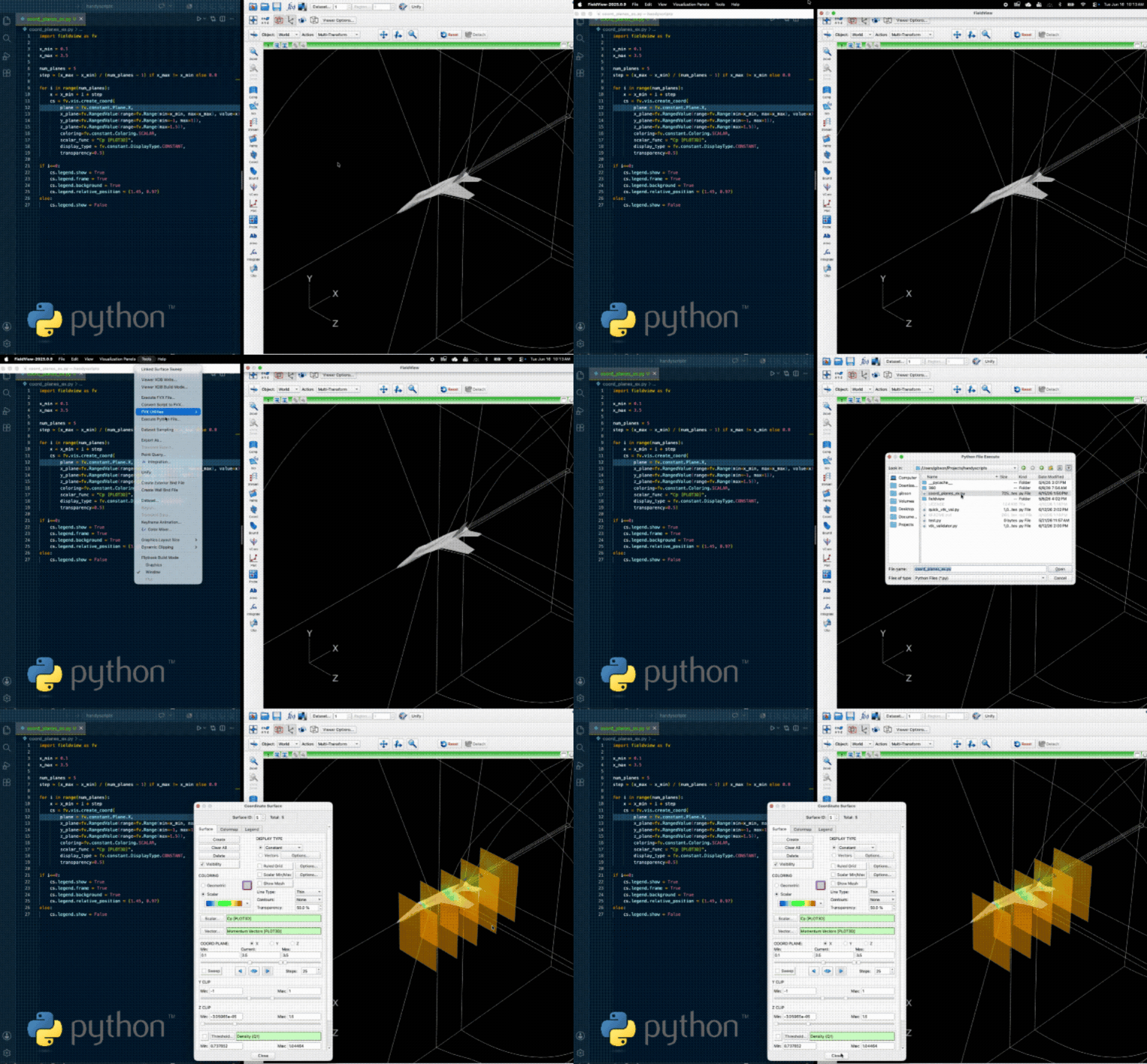
PyFieldView meets you wherever you are in your workflow. Reach for batch mode when you want FieldView to crank through image and video generation, heavy data analysis, or extraction without you watching over it. Stay interactive when you’d rather automate a step or two and keep working in the GUI.
PyFieldView FAQs
Do I need a separate license?
No, if your FieldView maintenance is active, PyFieldView is already accessible.
What happens to my FVX scripts?
They keep working. FVX is fully supported, and nothing you’ve built stops running. PyFieldView is simply the modern path for new automation and customization work, and if you’d like a hand moving existing FVX workflows over, the Tecplot support team is glad to help, reach out at support@tecplot.com.
What can I actually do with it?
Just about anything you’d do by hand in FieldView, only scripted: build and tune visualizations, run post-processing and quantitative analysis, and string it all together interactively or in batch. From there you can push your data out to the Python ecosystem for machine learning and AI work, then pull the results back in to see them.
Can I connect it to my other Python tools?
Absolutely. Export your CFD data to libraries like NumPy and PyTorch for custom analysis or model training, then bring derived quantities back into FieldView to visualize your results.